Number Photo Collage for Birthdays and Anniversaries
Shape your photos into a number: a 16th, 40th or 90th birthday, a 25th or 50th anniversary, a graduation year, or a team number. Shape Collage fills the digits with your pictures automatically.
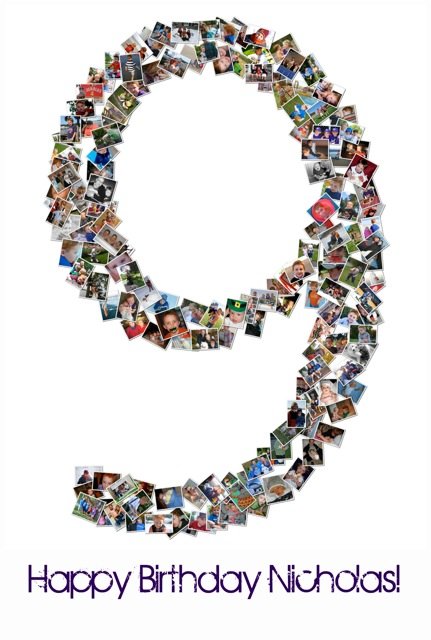 A 9th birthday
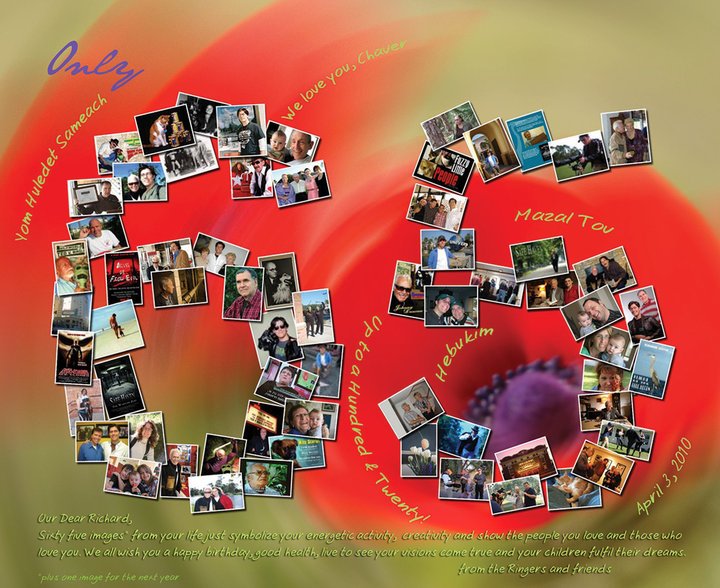 A 65th birthday
 A 3-month anniversary
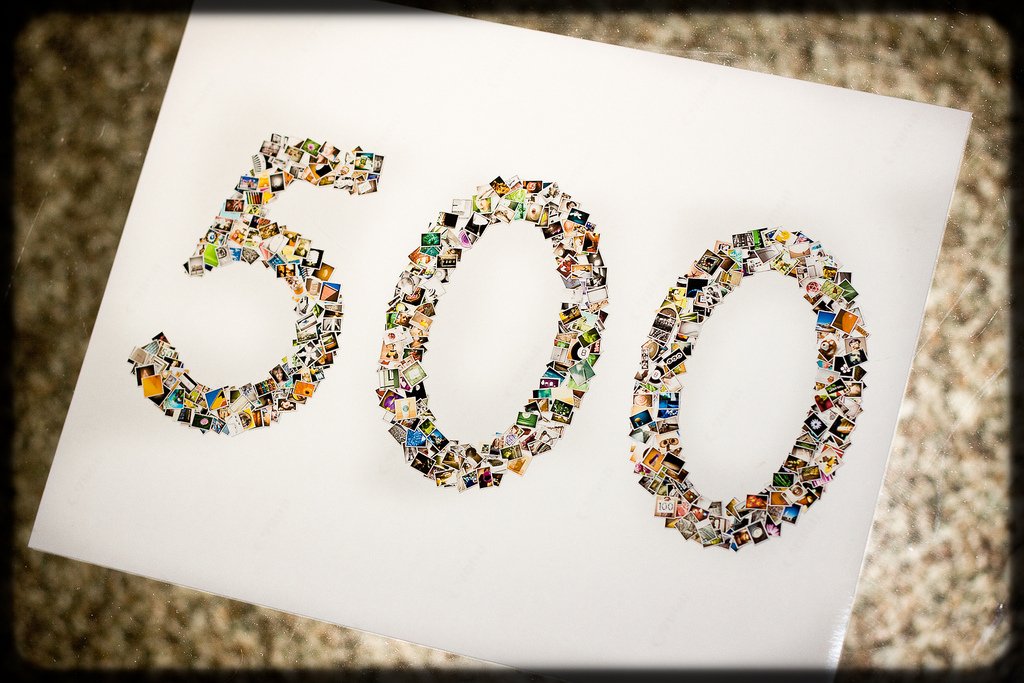 500 photos in 500
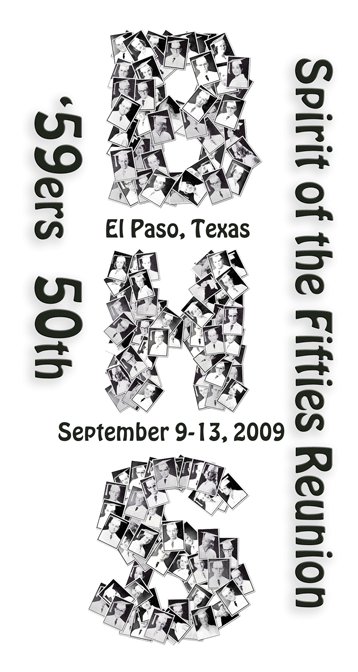 A 50th class reunion
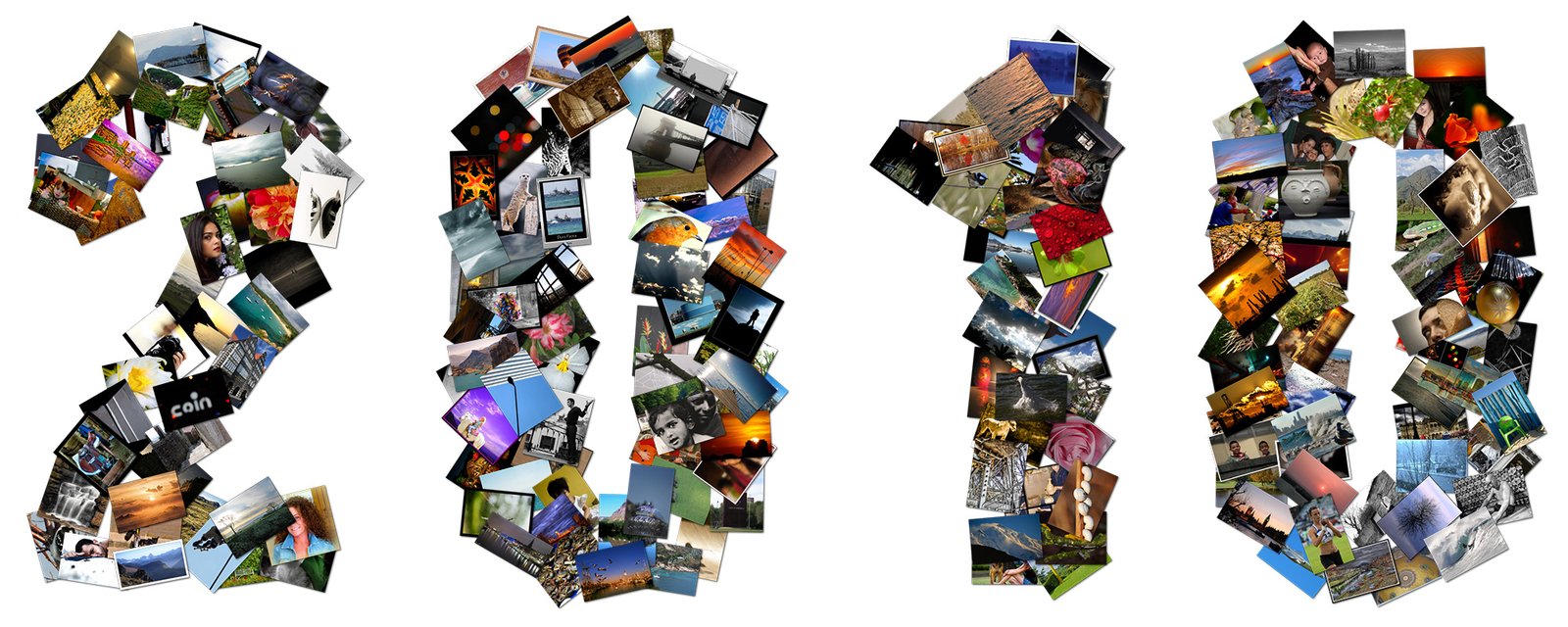 A year in photos
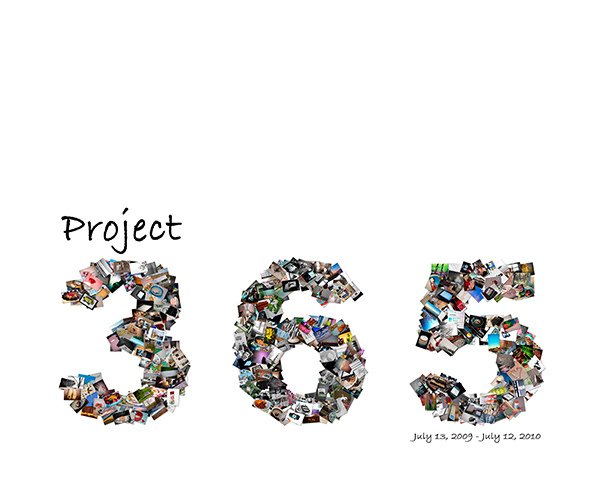 Project 365: a photo a day
 Rio 2016
How to make a number collage
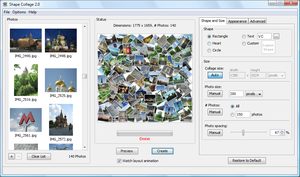
- Download Shape Collage (free for Windows, Mac and Linux) and open it.
- Drag your photos into the photo box. Plan on 30 to 60 photos per digit.
- On the Shape and Size tab, choose Text and type the number. Pick a heavy, bold font so each digit is wide enough to show the photos.
- Set the collage size: two digits look good at about 4000 × 3000 pixels.
- Click Create, then save it as a JPEG or PNG to print or share.
Ideas
- Milestone birthdays: one photo from every year of the person's life, shaped as their new age. A great centrepiece for a party or a slideshow.
- Wedding anniversaries: photos from the wedding to today, shaped as 10, 25, 40 or 50.
- Graduation: school photos and friends in the shape of the class year.
- New Year: the best photos of the year in the shape of the year.
- Sports: a player's number made from photos of their season.
- Reunions: photos through the years in the shape of the anniversary, like the 25-year poster in the gallery.
Tips
- Thin digits like 1 and 7 hold fewer photos; use smaller photos or a heavier font so they don't look sparse.
- A plain background (white, black or a party colour) makes the number easy to read.
- Add text like "Happy 40th, Sam!" afterwards in any photo editor, or with Shape Collage Pro's Photoshop export.