How to grab photos from other websites – Images that Move You

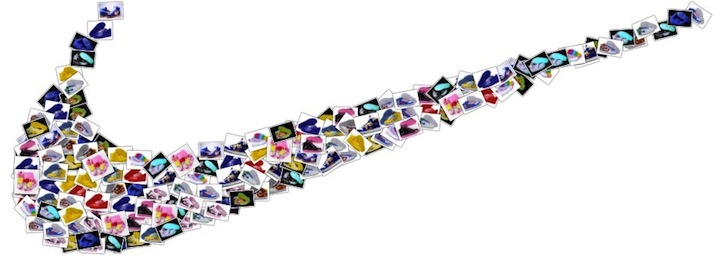
We had originally planned to write a post about travel blogging and how Loupe can help you with being creative with your photos but after reading 7 worst international aid ideas, we hope to inspire you to put together all the images that move you, make you want to do something more.

Have you ever wanted to donate a t-shirt to Africa? How about buying a Buy-One-Give-One TOMS shoe? Richard Stupart writes all the reasons why you shouldn’t. He also documents many of his travels on his personal blog via photos. Do you have a ton of photos from your previous travels  that move you? Dig out those photos and do something with them! Or maybe you don’t travel but you follow other people’s travel photo blogs — take a minute to make grab the top images that move you.

1. Bookmark the websites with the images you want or have all the websites open.

2. Go to Loupe — www.getloupe.com

3. Click on “Get Started —>”


4. Start a new canvas by clicking “New” 5. Click on the “URL” tab 


6. Now copy and paste the URL’s from the websites with photos that move you and click on the photos that you would like in this collage and then click “Done”.

7. Choose your shape in the top bar and watch the your photos form into the shape you selected. There’s also a super neat effect – where you scroll over images and zoom. Take a look!


Now try and make your collage – What images make you move?


Photo credit: Noupe – 35 Powerful Photos that Tell a Story


Leave a comment

Custom Shapes – Faces

Happy Presidents Day from the Shape Collage Team!

Recently, we have been posting other users’ collages on our facebook page. A few of you have asked how we create custom shapes. Thank you Jerry Chen (@jerrychen) for the Presidents Day post suggestion. Creating custom shapes is currently available on the Shape Collage Desktop application only.

First, search for the image or shape that you want to create. This can be a face, car or animal shape. It can even be hand drawn (in black and white).


Make sure that you choose “images” and scroll to the bottom where you can look for “clip art” or “line drawing” as it has to be a black and white image for Shape Collage to detect the shape.

Click on the image/shape that you would like to use for your photos, then right click and save as. Save it where you will be able to find it easily. In the spirit of Presidents Day, we chose Barack Obama’s face as the image.


Once you’ve picked our your image, load Shape Collage Desktop. Make sure you’ve got our latest Desktop version (2.5.3). You can download it here if you need to update it.


Once you have it loaded, make sure you click on “custom shape”


You should then see a new window pop up – press “load”.

Browse for your image and press “open”.

You can make edits to your image by erasing or editing your black and white image/stencil. Once you’ve made your edits, click “done”.


Now that you’ve selected your shape, you can add your photos! Click “File > Add Photos or Add Folder or Add Photos from Web”. Since we don’t have any images of Barack Obama, we’re going to find them online instead. Make sure you copy the entire URL at the top of your browser.

Back in Shape Collage Desktop, go to “File > Add Photos from Web” and paste the URL you just copied from your search. Then click “Add”.

Go through the photos on the left hand column and select the photos you DO NOT want to use in your collage. Click on the “-” button to delete them out of your collage.

Once you have sorted through all the images – click “Preview” to watch the magic! You may need to adjust the number of photos (# Photos) used in the collage to ensure that you capture as much of the shape as possible. Once you’ve found the right number of images, click “Create”. In this case, this collage needs 750 photos to create a collage of Barack Obama in the shape of his face.

and… voila! Have some fun with your photos. Be creative. What photos would you use to describe Barack Obama?

Note: Creating custom shapes is currently available on the Shape Collage Desktop application only.

Tags: , , , , , , , , , , | Leave a comment

Family Day

What is Family Day? How does Family Day even exist? Those were our exact thoughts when we heard about Family Day. Apparently, according to wikipedia, in South Africa and some parts of Canada, Family Day is a statutory holiday and usually in the third Monday of February.

What do people do?

On Family Day, many plan activities aimed at the whole family. These include visiting art exhibitions, watching movies, skating on outdoor ice rinks, playing board games and taking part in craft activities. What better way to celebrate than to create a collage of everyone in your family?

First, find all the photos you want in this collage and select them


Next, pick the shape you want. In this case, we chose ‘text’ spelling out “team”


If there duplicate images in the same letter or overlapping images, feel free to press EDIT. You can even scroll over or zoom in to see which images are being used

Play around with the features on Loupe see if you put together a small gift for Family day!


Tags: , , , , , , , , | Leave a comment

60,000 collages and counting

Thank you for your support so far. Since the launch of Loupe, we’ve had over 60 000 collages made worldwide and have been reviewed in countless languages including english, japanese, norwegian, spanish, chinese, thai, french, german and more! We are continuously looking for features to improve. We would love to hear your feedback – feel free to leave us a message on our facebook page or tweet us @shapecollage.

Outside of launching Loupe and working a gazillion other things, we’ve had an exciting start to 2012 with three new additions to the team. Shape Collage was a two man team but has managed to recruit three very talented people to join us!

Please welcome three of our newest team members. Below is a little bit about each

Jordan graduated from Capilano University in Interactive Design. Prior to joining Loupe, he was a designer at Versapay and was a freelance consultant for all things Apple. Jordan focuses on building functional and aesthetically beautiful user experiences for iOS, Mac and the web. He’s all about the Apple – enough said.

Chris is from a little town Oshawa, Canada. He graduated from Ryerson University in Toronto with a BSc in Computer Science. He worked at Flyerland.ca and Zip2Save.com as a Web Architect before co-founding fashion startup WhatImWear.In out of the Digital Media Zone at Ryerson. Chris loves music, running and can often be found cycling aimlessly around the city.

Ovey, pronounced “O’vay” – like “O’kay” studied Business and Communications at Simon Fraser University. At age 16, she founded oy&co, a marketing communications agency,  built a team of eight and currently continues to advise for the agency. Ovey has over 6 years of experience in print and digital media and was previously an ELLE.com and 2010 Winter Olympics Editor. She made her transition into technology in 2011 and was formerly at Notesolution Inc. Ovey currently sits on the advisory board of Shark Truth and on Mondays, she mentors a group of young journalists at Y57 Media. When not attached to her blackberry, you can find her adventuring outdoors.

Connect with us here – Shape your photos

Leave a comment

Shape Collage’s New Web App — Loupe

Shape Collage’s new web app — Loupe. Shape your photos the way you want in seconds! Experience features such as customized selection, manual photo dragging and other photo options! You can now add photos via Twitter, Instagram, Tumblr and more.

Customized Selection
You can search for the photos you want on the web! You can custom select the photos you would like to shape by selecting all, none or the ones you want:

Add photos via Twitter and Instagram
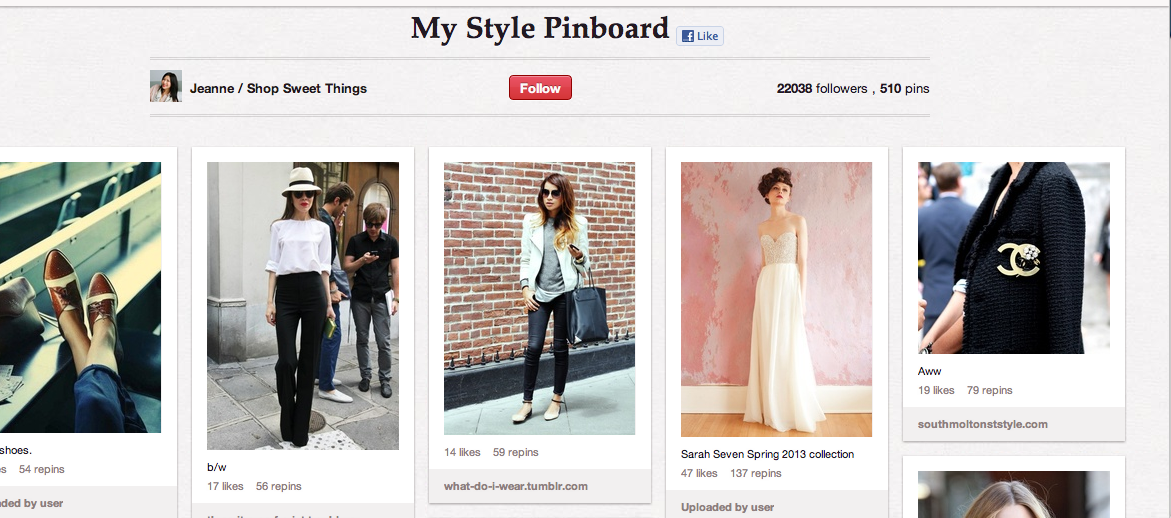
Do people you follow always post the best photos? Want to make a collage of all breakfast ideas? Find photos of best breakfasts through Twitter, Instagram, Tumblr, Facebook and even by pasting a direct url to the blog you love!


Direct Link
Didn’t find the images you want on Twitter or Instagram? Type in the url of your favorite blog or photo gallery! Put together your New York Fashion Week outfit with ELLEgirl.com’s suggestions!


Manual Photo Dragging
Once you have chosen all the photos you want onto your working board, you can individually organize the photos in the shape you want and even drag photos around if you want them in specific positions. Click on  to move individual photos.

Exciting isn’t it? Try Loupe now!

We’d love to see what you’ve done with your photos. Post your photo on the Loupe facebook page to be featured on our blog!

Tags: , , , , , , , , , , | Leave a comment

Teaching in the Classroom: Education Collage

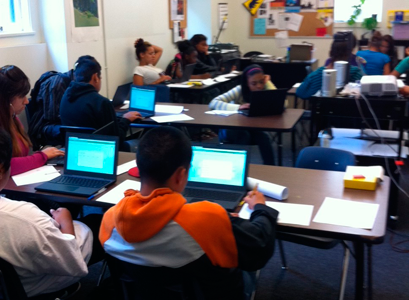
Lesley Nord uses Shape Collage in the classroom to better engage his students, teach about math, get his students to think critically, and encourage them to write and blog.

Sinkhole collage used in a math lesson. Created with Shape Collage Online.

I teach and am always looking for new ways to integrate technology into education to engage my students and to help prepare them by modeling that we all need to keep up with changes. Although my primary field is collaborative math, I have been working to engage teachers and students with technology.

I found Shape Collage and used it in a variety of ways to model for students. I began a website about our mini-farm to model the simplicity for teachers. As part of this, I wanted to illustrate the blog in a variety of ways. Two of the items I created were collages. One utilized the paw print to capture pictures of my favorite things (my dogs and my horses). When sharing with students/teachers I showed them how each picture related to my writing in the blog. I asked students if they would be encouraged to write if they used their own photos and/or used a collage to begin the writing process. Their positive response was overwhelming.

My favorite though is the “Sinkhole” (pictured above). I used this to tell the story of math in our home. Without warning, a hole appeared on our property. It was about 2 feet in diameter. Because it was so unusual, experts came to study it. I created a circle using those pictures. I have used this information to introduce geometry concepts and real world application to problem solving.

After viewing the pictures, we did a variety of exercises and then the students were given the task of determining how best to fill the sinkhole, how long it would take them to fill using their materials and the cost. They were given the guidelines from the experts but had to create drawings, use math and find costs of materials and justify their results. Not only did the students become engaged with the math, they were introduced to Shape Collage and asked to see more examples.

I did a couple and since then students have shown me their own products. Not only did they use critical thinking skills in my activity, but have used similar skills to create and refine their collages and have begun to write and blog. It reminded me of an old commercial for some shampoo…and they told two friends and so on and so on. The students and some teachers were introduced not only to technology and critical thinking skills, but saw their own uses for it.

———
Lesley, we love all the different ways that you’re using Shape Collage as an educational tool! Gold Star! A+!

Do you have a Shape Collage story?  Share your story with us!

Tags: | 7 Comments

Birthday Collage Poster

Here’s a fun idea from Heidi, a Shape Collage fan, and mother of four young kids, in Minneapolis:

Birthday Collage PosterI discovered Shape Collage a couple of weeks ago and have been having such a great time using it! Last week I used Shape Collage to make a ninth birthday present for my oldest son, Nicholas. I took 160 images—from the first photos of him at the hospital the day he was born, all the way through his basketball game a couple of weeks ago—and made them into a “9” using the “Text” option in Shape Collage’s “Shape and Size” menu. Because I wanted to create a poster-size print, I manually set the collage size to 20 x 30 inches in the “size” menu. So easy!

I used an image editor to add “Happy Birthday Nicholas!” to the bottom of the image. (I love how Shape Collage lets you use your favorite image editor—whether it’s Photoshop, Picnik, Gimp, Picasa or whatever—and allows you to “own” the collage digital file to do with what you wish.) Then I uploaded it to my favorite photo developer, picked it up two hours later for just $25, and had it waiting on the kitchen table for Nicholas to see when he came down for his birthday breakfast the next day.

He really loved it. He and his brothers pointed out photos to each other all day, and it was a wonderful way to reminisce as a family. That night he actually said to me, “This is the second best present I’ve ever gotten.” (The “best” present, he later informed me, was the Wii he got last year. You have to appreciate the kid’s honesty!)

For years I’ve been scrapbooking and making photo books using online publishers. I have to say, Shape Collage is the fastest, most fun way I’ve ever discovered to make fantastic things out of our digital images. I can hardly wait to do my next Shape Collage project, a Valentine’s Day heart for my husband!

———
We love hearing stories like these! Thanks for sharing Heidi!

Do you have a Shape Collage story?  Share your story with us!

Tags: | 5 Comments

Original, Thoughtful, Touching Valentine’s Day Idea

How many times have you gone through the same routine in early February and reviewed your Valentine’s Day options only to come up with the same old ideas:  flowers, jewelry, chocolates, romantic dinner, etc.

These are still popular and depending on how expensive the jewelry or flowers are you can still get full credit, but they just aren’t that original.

One way to win someone’s heart is to give a personal gift that conjures up happy times and creates lasting memories. Here’s a quick, easy and original idea that, unlike roses, will last forever and always bring a smile to your significant other’s face.

Create a heart shaped collage of your romantic times together. All you need is a few minutes, as many digital pictures as you would like to include and a printer (a nice frame is a good idea as well to present your touching gift). Imagine these couples featured in the collage at the top of this post are pictures of you and your special someone sharing happy moments together. Print it at home or at a print shop, frame it and you’re all set. Follow the simple steps in this short how-to video and impress your significant other with a romantic collage from Shape Collage this Valentine’s Day.

Tags: | 7 Comments

Holiday Gift Ideas: Collage Posters, Cards, and More

Looking for a unique gift to give this holiday season? With Shape Collage, it’s quick and easy to make a very personalized gift that will be remembered for years to come!

Take dozens or hundreds of your family photos and use Shape Collage to put them into the shape of a heart or spell out your family name. You can then take this photo collage and have it printed as a poster and framed at any photo development or print shop.

This makes a perfect gift for parents or grandparents that already have everything. Instead of just another generic gift, you can give them something special – the gift of memories! Best of all, you can do the whole thing from start-to-finish in the same day!

Joshua made a touching Christmas gift for his parents by making a photo collage from a bunch of old family photos and printing it on a large canvas. The gift made his Mom cry!

Making a holiday card to send out to friends and family or just a card to go with a gift? Why not add a personal touch to it and do something different? Take some pictures and put them into the shape of a snowman, candy cane, Christmas tree, Star of David, or another holiday themed shape and use that picture collage on your card.

Kurt took photos and turned them into a wreath for a fun and creative holiday card.

Want other gift ideas? Put a photo collage on a mug, t-shirt, or notebook to give someone something useful and memorable. Take photos from this year and write out “2010″ with the photos to commemorate the year. Spell out “2011″ and use the collage to make a calendar. The possibilities are endless!

Kelly wanted to give her friend a unique and personalized gift for Christmas. She made a collage out of photos from her friend’s recent wedding, and then printed and framed it to give her friend a gift filled with memories.

Do you have other collage-related holiday gift ideas? Let us know by leaving a comment below!

Tags: | 3 Comments

Shape Collage Story: The Perfect Christmas Gift

Shape Collage is perfect for making really personalized gifts and Kelly did just that:

My idea came from searching the web to find the perfect Christmas gift for my college roommate, who I was the maid of honor in her wedding this past August. She has been bugging me to put my pictures from the wedding on a CD, which I had, but just haven’t sent to her.

I stumbled upon Shape Collage and came up with the perfect gift for my friend Tami! I wanted to capture every part of the wedding, but in a different way then I’m sure she had got from anyone else, even the wedding photographer! With the help on Shape Collage I came up with the perfect Christmas gift! I can’t wait to give it to her.

Thanks Shape Collage!

———
What a fantastic personalized gift! Thanks for sharing your story Kelly!

Do you have a Shape Collage story?  Share your story with us!

Tags: | 3 Comments